

Quickstart
This walks you from signing in to your first real result. It takes about five minutes and assumes nothing — by the end you’ll have chatted with a model, switched to a different one, and let Catalyst use a tool on your behalf.
Sign in
Section titled “Sign in”-
Go to catalyst.voov.ai.
-
Sign in with an email address or your Google account — both are free. There’s nothing to install and no API key to paste in to get started.
-
You’ll land on the chat screen with a default model already selected, so you can start typing right away.
Send your first message
Section titled “Send your first message”Type a question into the message box and press Send (or Enter). The reply streams in
token by token, and the model that produced it is labelled beneath the response.
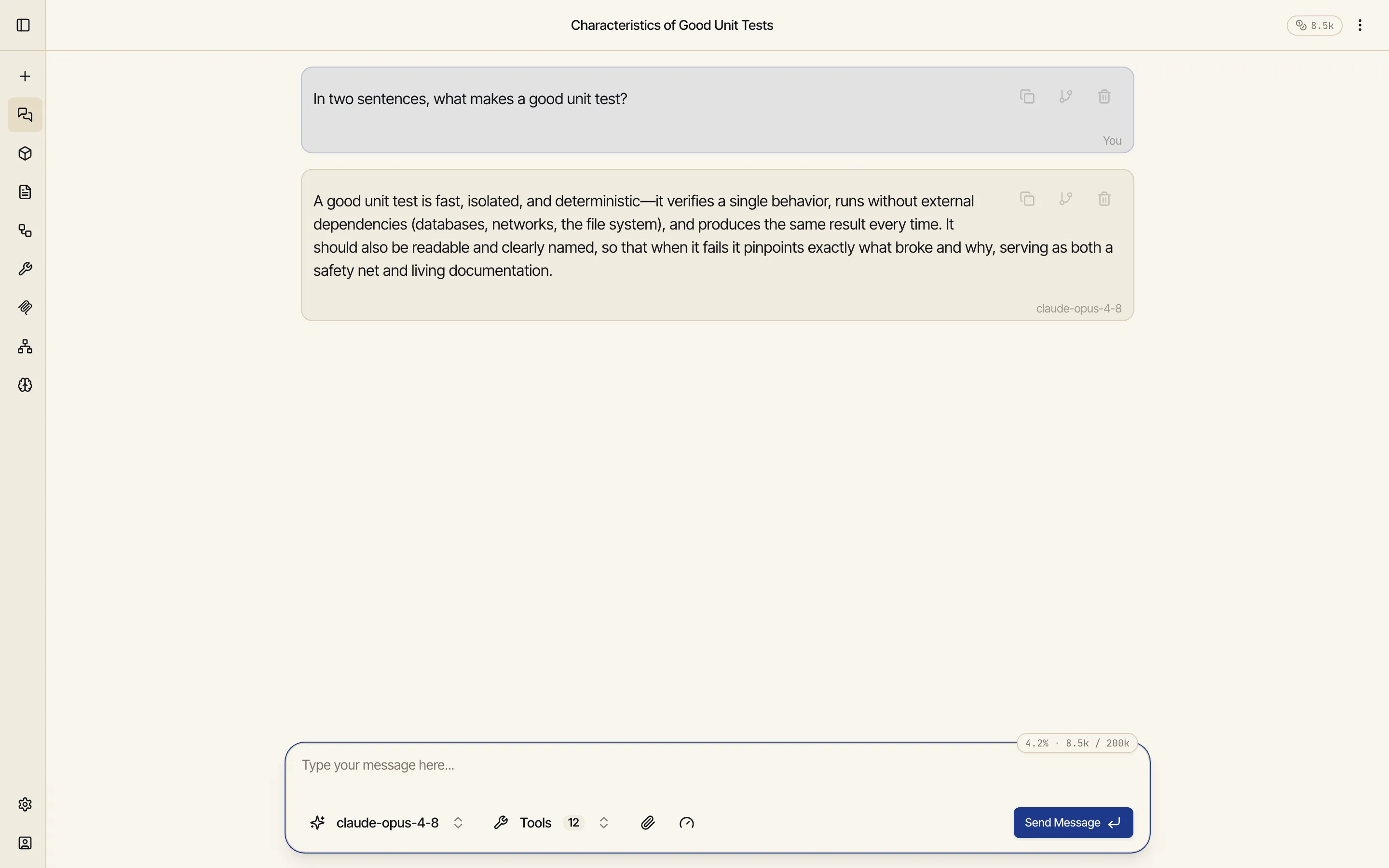
A few things worth knowing from the first message:
- Context carries forward. Every message you send includes the earlier conversation, so the model can build on what came before. Start a new chat when you switch topics — it keeps replies sharp and avoids dragging in unrelated history.
- Sessions are saved automatically and titled for you. Find them in the sidebar, or on the home screen under Pick up where you left off.
Switch the model
Section titled “Switch the model”The model name sits in the composer, next to the message box. Open it to pick a different one — Claude, GPT, Gemini, or any model your workspace has been given access to. The conversation, your tools, and your settings stay exactly as they are; only the model underneath changes.
Let it take action
Section titled “Let it take action”So far the model has only replied. Turn on agentic mode (the reasoning/tools control in the composer) and it can act — search the web, run code, generate an image or a short video, or call a tool you’ve connected — looping until the task is actually done. Ask for something that needs a step or two, like:
Find this week’s date, then write a short Python snippet that prints the next five Fridays.
You’ll see the model call a tool, read the result, and continue — not just guess.
Where to go next
Section titled “Where to go next”You now have the core loop: ask → switch models freely → let it act. From here:
- Core concepts — the mental model behind models, context, tools, and memory, so the rest of the docs click into place.
- Chat guides — go deeper on artifacts (code, docs, and diagrams in a side panel), generating images, videos and music, and working with your own files.
- Workflows — when you find yourself doing the same thing twice, capture it as a workflow that runs the same way every time.