

You ask, it builds
Describe the app in chat. The assistant builds any workflows it needs, writes the app, and opens it live — no canvas, no setup.
A mini app is a small custom page — a tracker, a dashboard, a one-button tool — built on top of your workflows and data collections. You don’t build it by dragging boxes around; you ask the assistant for it in chat, and it builds any workflows it needs, writes the app, and opens it as a live, working preview right there in the conversation.
You can use it immediately — it’s not a link you have to go click. The Expense Tracker below was made by asking for one.
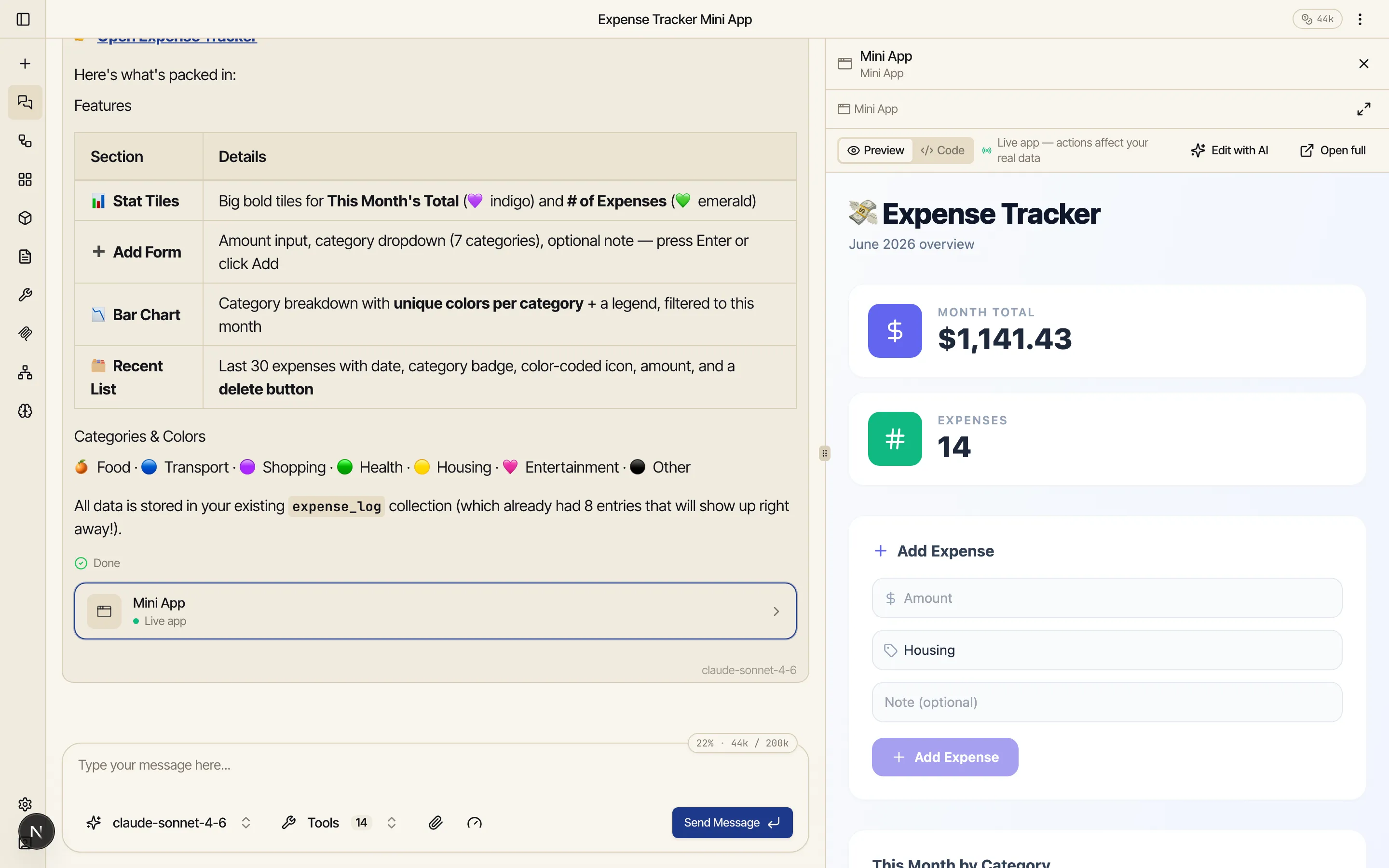
You ask, it builds
Describe the app in chat. The assistant builds any workflows it needs, writes the app, and opens it live — no canvas, no setup.
Live, not a mockup
The preview is the real app running against your real data. Use it on the spot; iterate by asking (“add a chart”, “make it blue”).
Built on your stuff
An app sits on top of your collections and workflows — the data it reads and the work it runs are things you already have, or that get created for you.
Walled in by design
Every app runs in a secure sandbox and can only reach the collections and workflows you grant it — nothing else.
You never start from a blank canvas. There are two routes to a working app, and you’ll mostly use the first:
Either way you end up with the same thing: a saved app you can open, run, and edit anytime. When it’s ready, you can publish it to the store so other people can run or fork it.
Every app you make shows up in the Apps section. From there you can open one, edit it (or ask the assistant to), or delete it anytime.
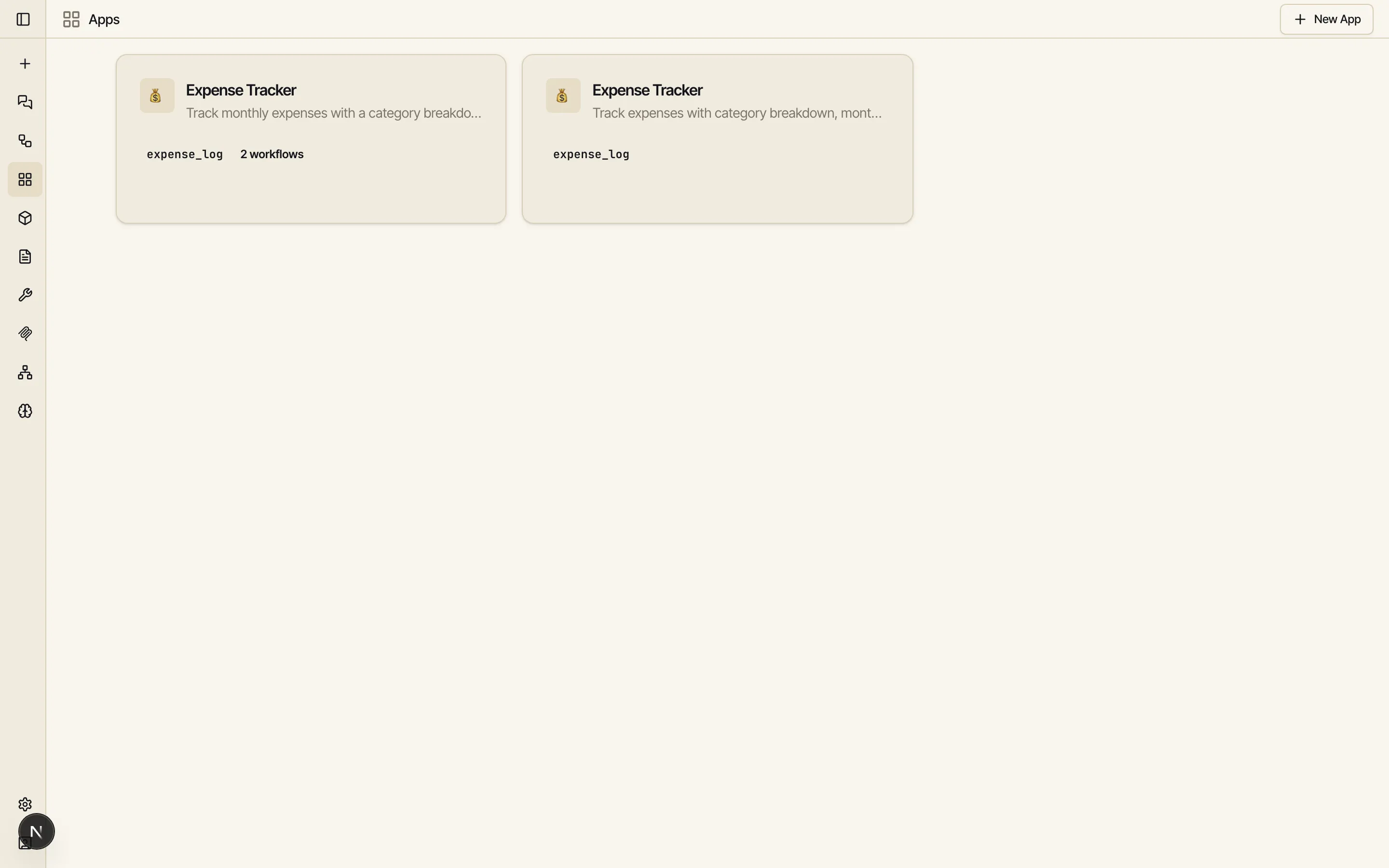
Deleting an app only deletes the app. The workflows it ran and the collections it read are shared assets you built — they stay exactly where they were, and any other app, chat, or schedule that uses them keeps working. See Data & permissions for what an app can touch and why it’s safe.