

Apps, prompts, skills
Versions in the editor header opens a full-width view in place of the editing panes — a timeline on the left, a diff on the right. Your editing buffers are untouched; closing Versions returns you to exactly where you were.
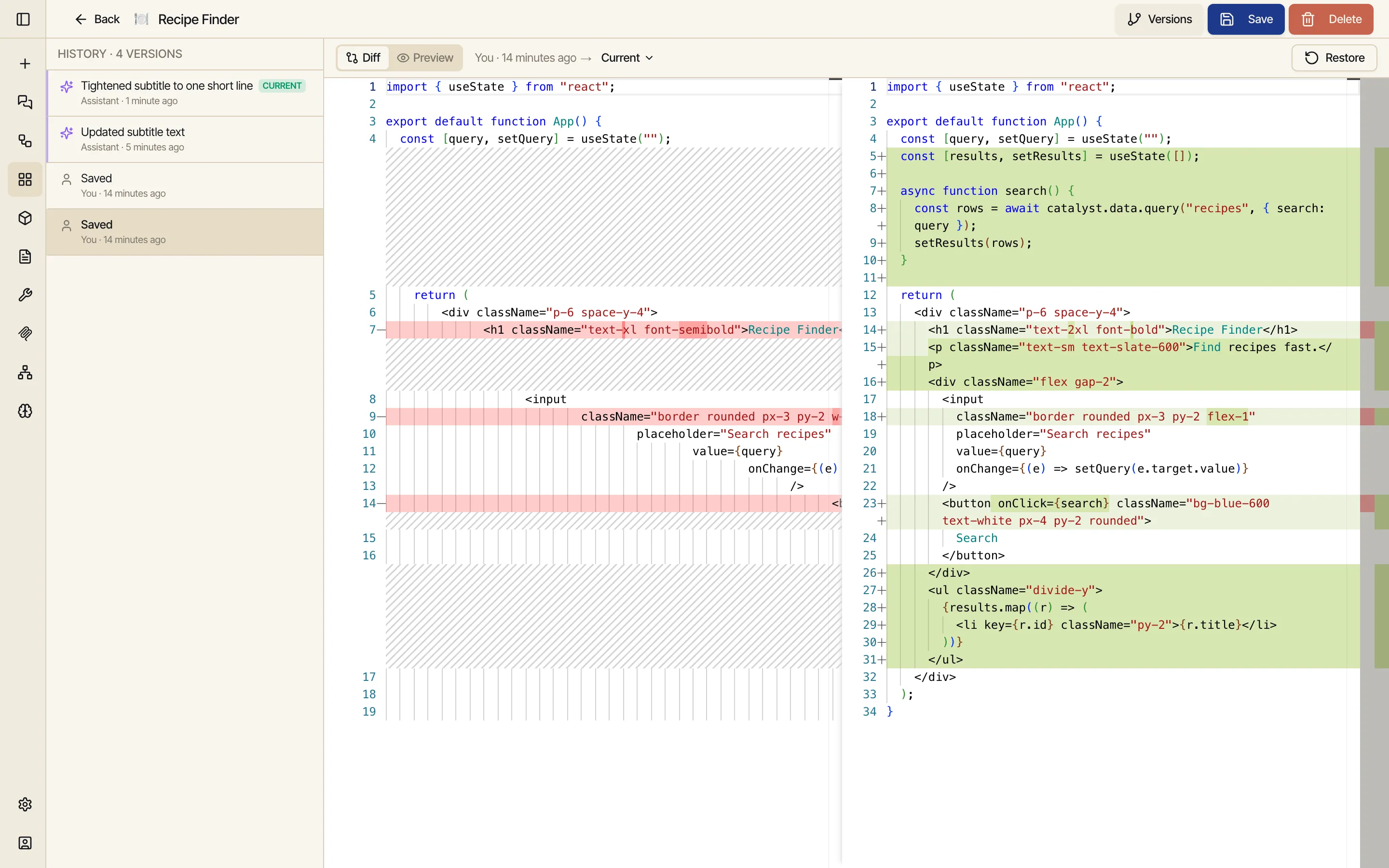
Every time you save an app, workflow, prompt, or skill, Catalyst captures the whole thing as a version — an immutable snapshot you can come back to. You don’t turn this on; it’s automatic. Every manual Save is a version, and so is every edit the assistant makes on your behalf.
Think of it like a save history for the things you build: you can see what changed and when, who changed it, compare any past version against the current one, and restore an earlier version without losing anything in between.
In each editor, a Versions button opens the history view.
Apps, prompts, skills
Versions in the editor header opens a full-width view in place of the editing panes — a timeline on the left, a diff on the right. Your editing buffers are untouched; closing Versions returns you to exactly where you were.
Workflows
Versions opens the same timeline-and-diff in a window over the canvas (the canvas itself can’t be swapped out inline). Note: in the workflow editor, History means run history — version history is the separate Versions button.
The left column lists every version, newest first. Each row shows:
The newest version is tagged current — it’s what’s live right now. Click any older row to select it.
Selecting a version shows a diff on the right: the version you picked on the left, the current version on the right, with changes highlighted line by line. It’s the quickest way to answer “what actually changed in that last save?” or “what did the assistant do?”
By default the view lands on the diff between the two most recent versions, so you immediately see what your latest save changed.
The diff understands each surface’s content: apps and prompts and skills diff as text, while a workflow diffs its underlying definition.
Apps add one more thing: a Preview toggle next to Diff that renders the selected version live — the old app actually running, against your real data — so you can try a previous version before deciding whether to bring it back, not just read its code.
Found a version you want back? Select it and click Restore. Catalyst writes that snapshot’s content back as the current version — and because that save is itself recorded as a new version, nothing is lost:
You restore the version from three saves ago.
That becomes the new current version — but your previous current version is still sitting in the timeline, right where it was.
Changed your mind? Restore that one. “Undo the undo” always works, because every state you (or the assistant) ever saved is still in history.
Catalyst keeps roughly the most recent 100 versions of each item. That’s generous headroom for the everyday “go back a few saves” case; very old versions beyond that are pruned to keep things bounded. Deleting an item also clears its history.