

Full chat
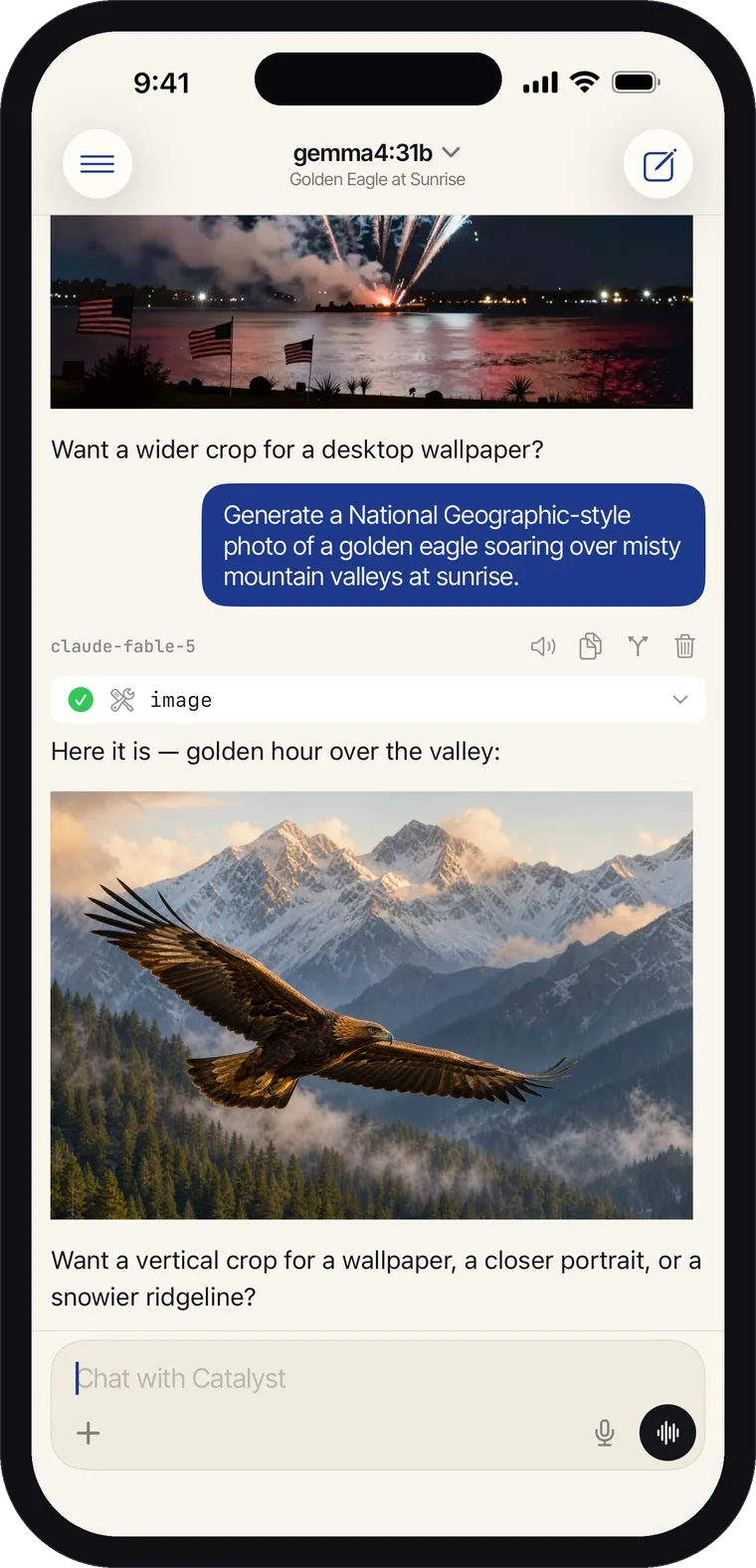
Streaming replies, reasoning blocks, tool runs, code output, generated images and inline video playback — the same conversation you’d see on the web.
Catalyst has a native iPhone app. It signs into the same account and shows the same conversations as catalyst.voov.ai — start something on your phone, finish it at your desk.
It is deliberately not the whole web app squeezed onto a small screen. The phone is built for the things you actually do on a phone: chatting, talking, and reading answers. Building things — workflows, mini apps, data sources — stays on the desktop, where there’s room for a canvas and a code editor.
Full chat
Streaming replies, reasoning blocks, tool runs, code output, generated images and inline video playback — the same conversation you’d see on the web.
Several models at once
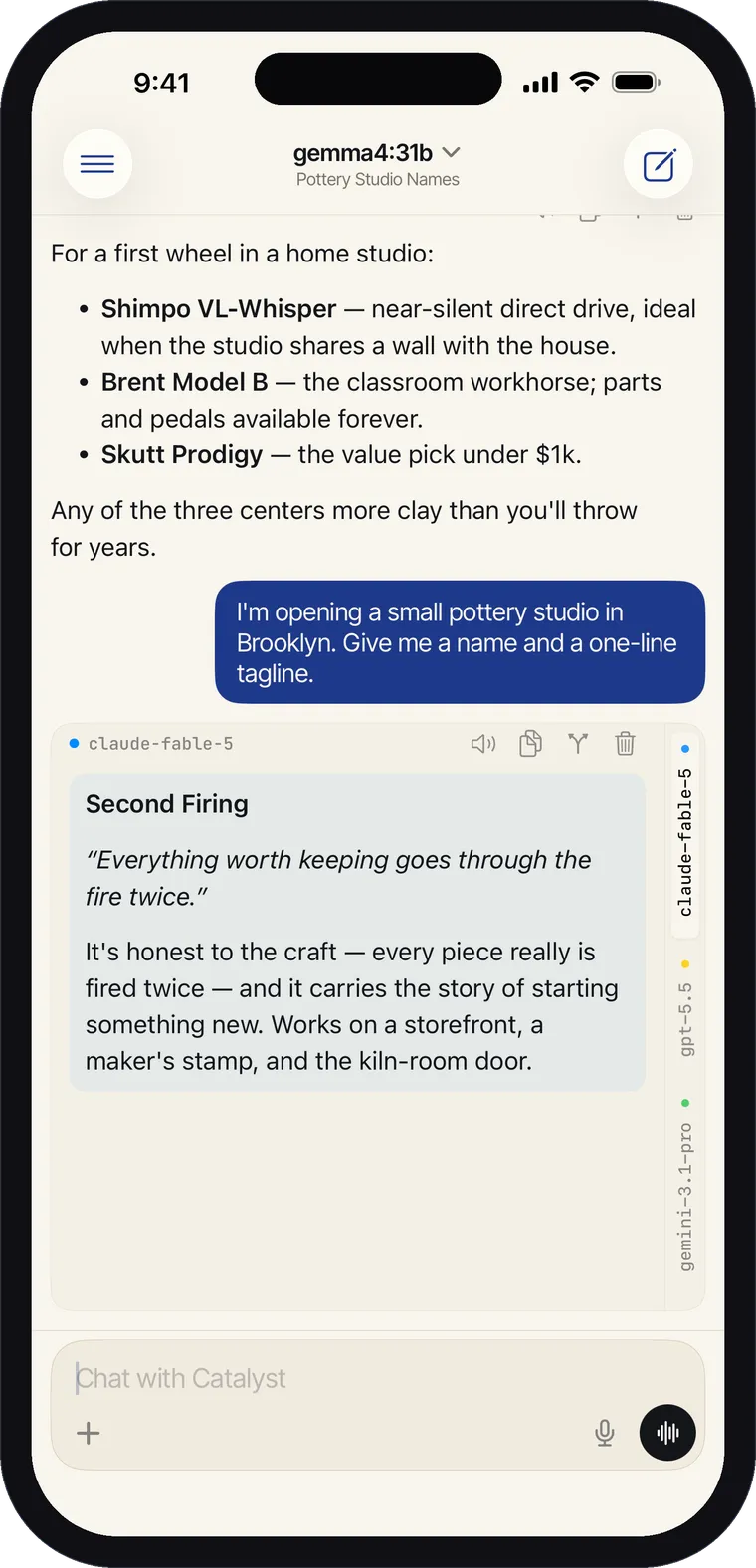
Ask the same question of multiple models and flip between the answers with the side rail.
Voice
Dictate instead of typing, or open hands-free voice mode and just talk.
Attachments
Add photos from your library, take a picture, or attach files from Files.
Providers & models
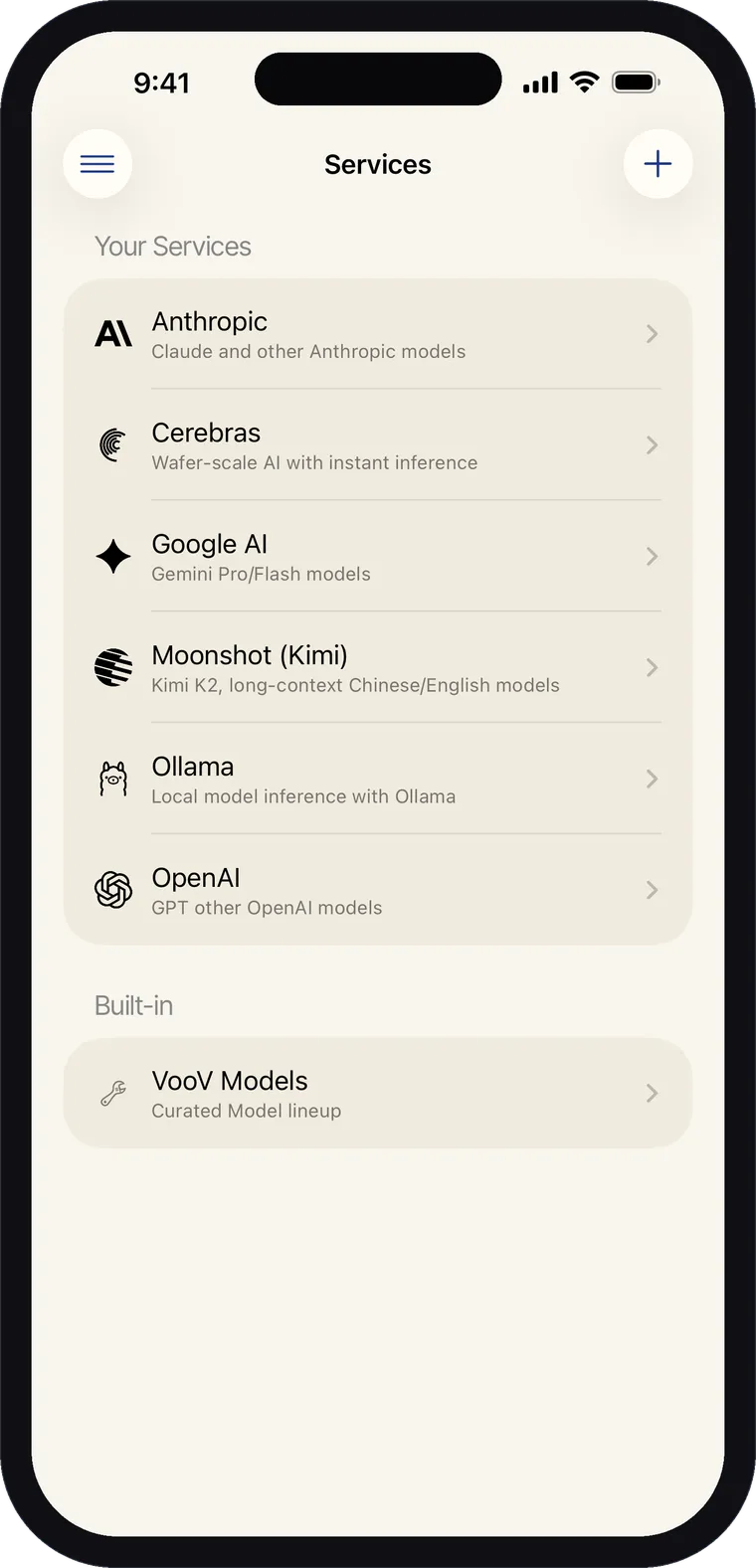
Add a service, paste an API key, browse its models and pick your default — all from the phone.
Tools
Turn built-in tools and your MCP servers’ tools on or off per chat from Add to Chat.
Pick more than one model and the reply arrives as a set. The rail down the right edge switches between them, so you can judge answers against each other on the phone the same way you would on the web.
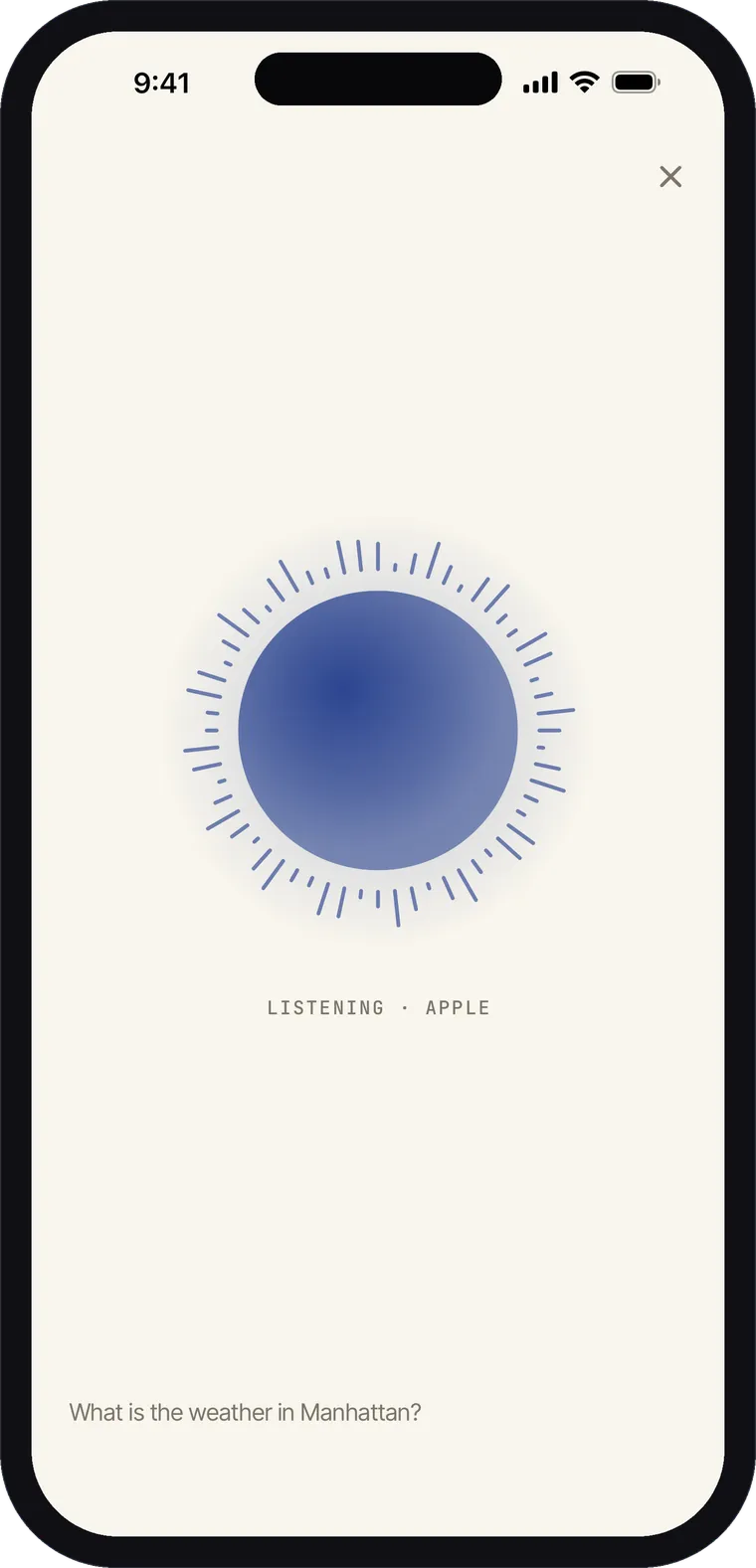
Tap the mic to dictate into the composer, or tap the waveform for voice mode — a full-screen conversation where Catalyst listens, sends when you pause, reads the reply aloud, and reopens the mic for your next turn.
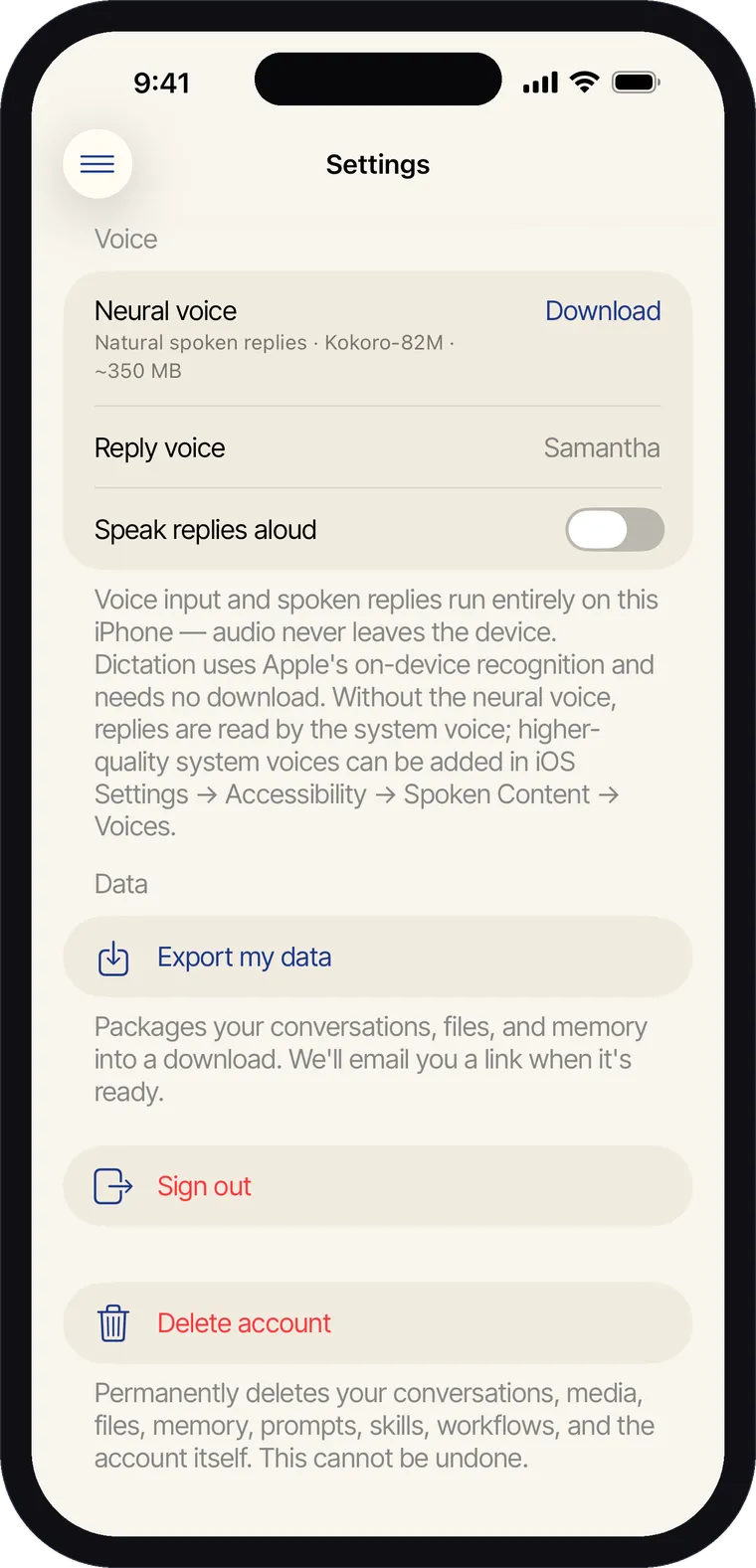
Speech recognition uses Apple’s on-device recognizer, and replies can be read by the system voice or by an optional neural voice you download once (about 350 MB) in Settings › Voice. Either way, your audio never leaves the phone.
Add providers, paste keys, and browse each service’s models without opening a laptop.
These surfaces have no iPhone equivalent yet. Everything they produce still works on the phone — a workflow you built on the desktop keeps running, a skill you wrote still shapes answers, memory the assistant saved still comes back in conversation — you just can’t build or manage them from iOS.
| Surface | On iPhone | Where to use it |
|---|---|---|
| Workflows | — | Build, run and schedule on the web |
| Mini apps | — | Build, run and publish on the web |
| Data sources | — | Connect and query on the web |
| Prompts | — | Your prompt library lives on the web |
| Skills | — | Author and edit on the web |
| Memory | Used automatically | Review and edit entries on the web |
| MCP servers | Tools usable per chat | Add and configure servers on the web |
| Sharing a chat | — | Create share links on the web |
| Chat search & history | Recent sessions only | Full search on the web |