

Agentic mode
By default a model can only produce text — it tells you how to do something. Agentic mode lets it do the thing: call a tool, read the result, decide what’s next, and repeat until the task is finished. That loop is the difference between an answer and an outcome.
Turning it on
Section titled “Turning it on”Agentic mode is controlled from the composer, alongside the model and reasoning-effort settings. With it on, the model is allowed to use whatever tools you’ve enabled; with it off, it simply replies. You can leave it on as your default — the model only reaches for a tool when the task actually calls for one.
What the model can do
Section titled “What the model can do”Out of the box the model has a set of built-in tools:
- Web search — look things up on the live web and cite sources.
- Run code — execute Python in a private sandbox to calculate, transform data, or test an idea (see Files & data in chat).
- Generate and edit images — create or modify images inline (see Generating images).
- Remember and recall — read and write your memory so context carries across sessions.
- Your data collections — read, correct, and total up the data your workflows have stored (see Store data between runs).
- Manage workflows — list your workflows, run one with parameters, check on a run, or save a new one it just designed for you.
- Load a skill — pull in a reusable skill for a specialized task.
On top of these, anything you connect as an integration shows up as another tool the model can call. So “agentic” isn’t limited to a fixed list — it grows with what you plug in. (Email delivery lives in workflows — see Delivery & files — rather than as a chat tool.)
Watching it work
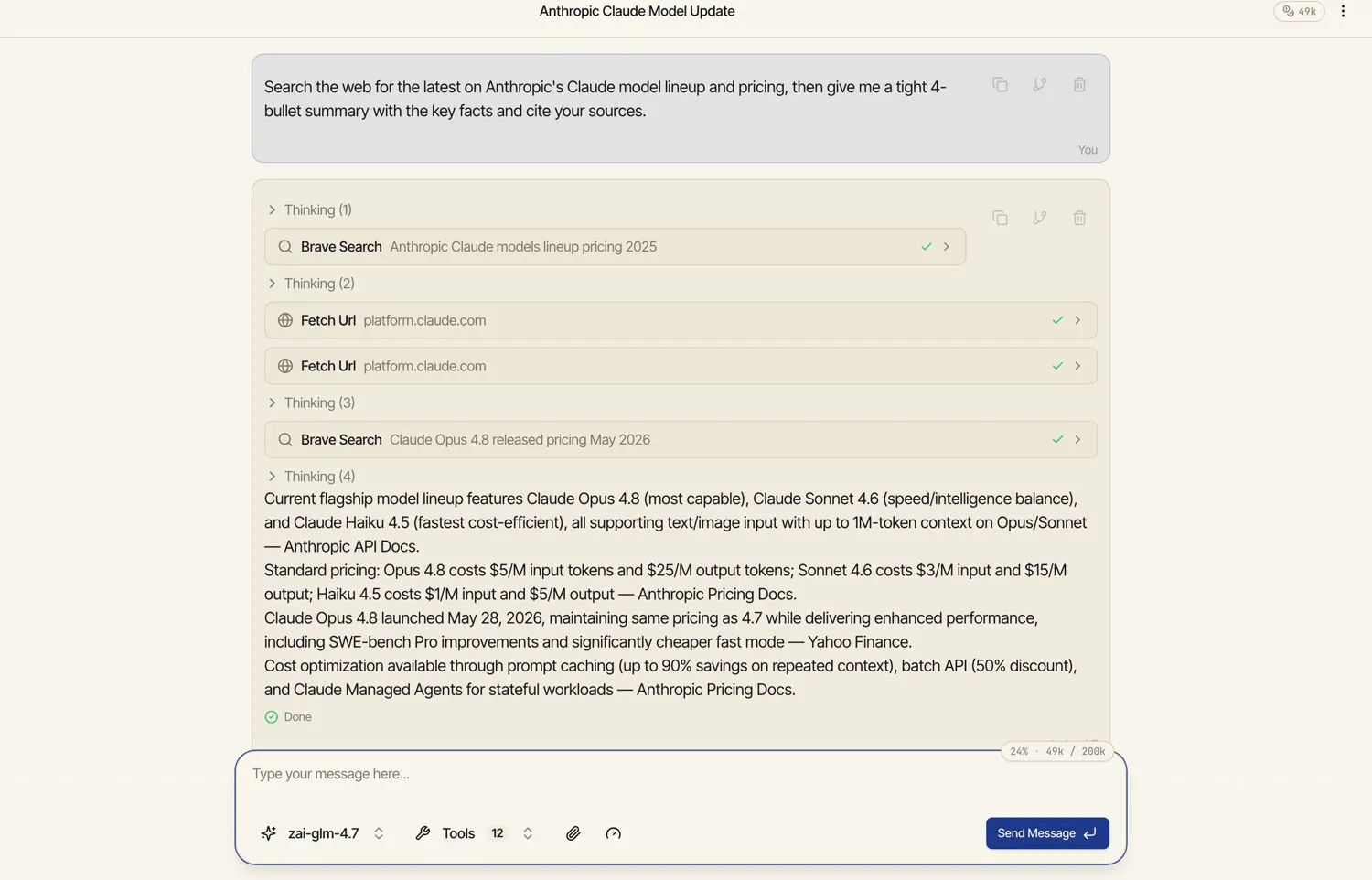
Section titled “Watching it work”As the model works, each tool call and its result stream into the conversation — the search it ran, the code it executed, the page it fetched. You see the reasoning, not just the conclusion, so you can trust (or correct) the result. If the model tries a tool that doesn’t exist or a call fails, it gets a clear error back and recovers rather than crashing the conversation.
You stay in control: stop a run at any time with the stop button, and the loop ends cleanly.
From a good run to a repeatable one
Section titled “From a good run to a repeatable one”When an agentic chat nails a multi-step task you’ll want again, you don’t have to redo it by hand. Ask Catalyst to capture it as a workflow — see Promote a chat to a workflow.