

A real conversation
The Assistant tab is the same chat surface as the main chat — same models, same streaming — scoped to edit this one item.
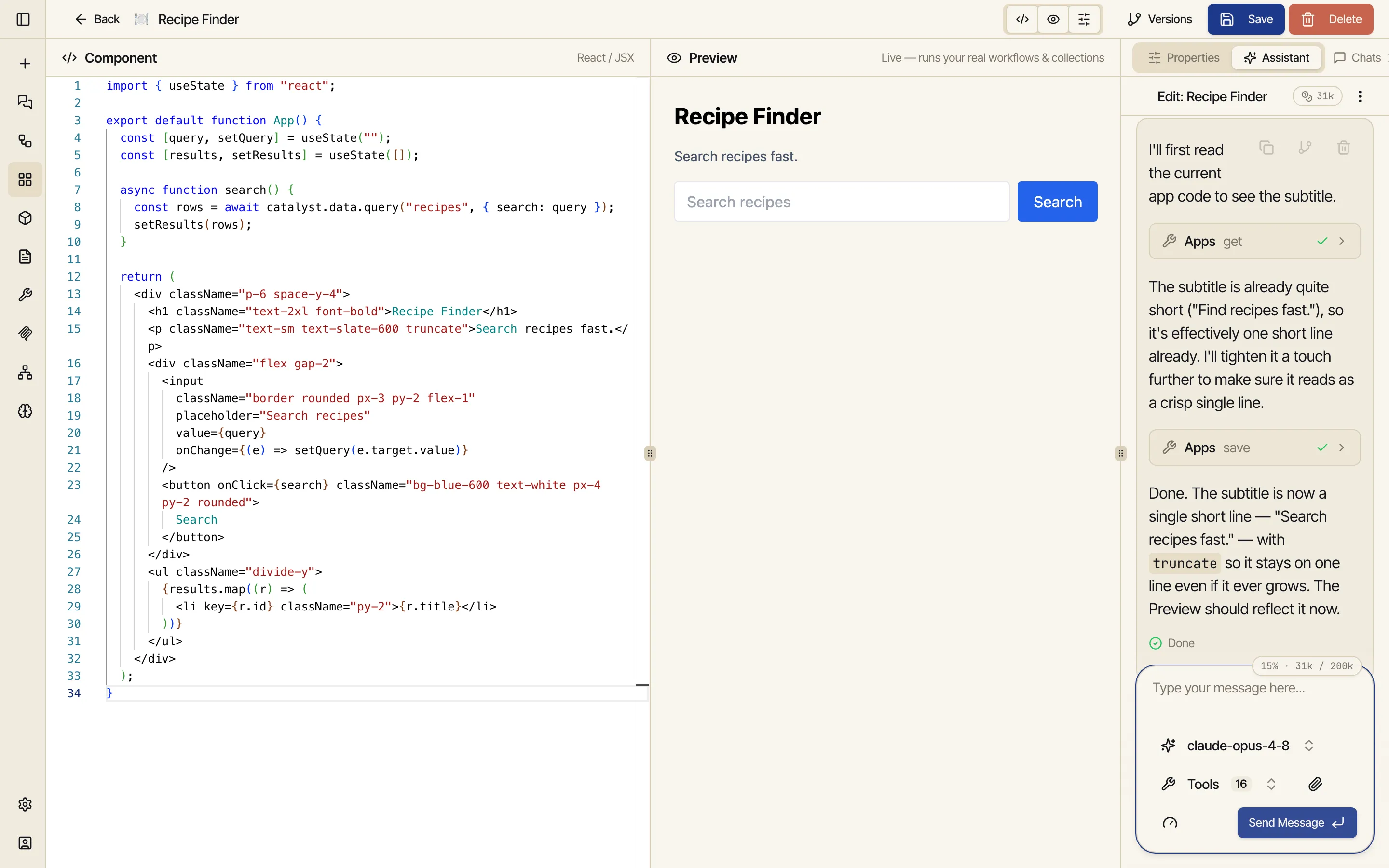
The app, workflow, prompt, and skill editors have an assistant built right in. Instead of describing a change in a separate chat and coming back, you describe it in the editor — and the assistant edits the very thing you’re looking at, with the editor and live preview updating in place. You never leave the page.
Each of these editors has a dock on the right that toggles between two tabs:
[ Properties | Assistant ]. The Assistant tab is the entry point — there’s no
separate button to find. Switch to it and you have a real chat, already pointed at the item
you’re editing. (The workflow editor adds one shortcut: an Edit with AI button in the
toolbar that flips the dock straight to the Assistant tab.)
A real conversation
The Assistant tab is the same chat surface as the main chat — same models, same streaming — scoped to edit this one item.
Edits in place
Describe the change — “add a dark-mode toggle,” “tighten this prompt’s instructions” — and the assistant rewrites the item. The editor — live preview or workflow canvas — updates to match.
Stay put
Flip to Properties to tweak a field by hand, back to Assistant to keep talking — same screen, same conversation, nothing torn down.
Open an app, workflow, prompt, or skill you own in its editor, and switch the right dock to the Assistant tab (in the workflow editor, click Edit with AI in the toolbar).
Describe the change in plain language. The assistant reads the current item, makes a targeted edit, and saves it.
Watch the editor — live preview, fields, or canvas — update in place — same item, now changed. Keep going if it’s not quite right: it’s a conversation, so refine until it’s what you want.
Before each turn you take, the assistant auto-saves your current draft — so it always works on your live content, including hand-edits you haven’t explicitly saved yet. You won’t have the assistant accidentally working from a stale copy, and you won’t lose the typing you did just before asking.
Every edit the assistant makes is also captured in version history as an Assistant version — so you can always see exactly what it changed, and restore past it if you don’t like it. Editing with AI is never a one-way door.
You can use the Assistant to edit only items you own — saving the change requires ownership. On a public or shared prompt or skill that isn’t yours, the editor is read-only and the Assistant tab is unavailable. Make a copy you own first if you want to AI-edit it.
In the workflow editor the Assistant edits the graph on the canvas — nodes, connections, and each node’s configuration. Click Edit with AI in the toolbar and the right dock opens on the Assistant tab, scoped to this workflow. One prerequisite: save the workflow once first — the button stays disabled on an unsaved draft, because the assistant works on the saved workflow.
When a run fails, the run dialog’s error banner shows a Fix with AI button. Click it and the Assistant opens with a ready-made failure report — the run, the failing node(s), and the error — sitting in the composer for you to review and send. From there the assistant digs into that run’s logs, diagnoses the failure, fixes the node, and can re-run the workflow to confirm.
Each item keeps its own AI-edit conversations. They’re listed in the Chats menu in the Assistant dock, scoped to this item — so they don’t clutter the recents in your main chat sidebar.