

Editing apps
Most of the time you’ll build and change an app by asking the assistant. When you want to change something by hand — a quick tweak, or picking exactly which workflows an app may run — open the full-page editor.
You get there two ways: click Edit on an app (from the Apps section or from the live preview in chat), or start a blank app from New App. Either way you land in the same editor.
The three panes
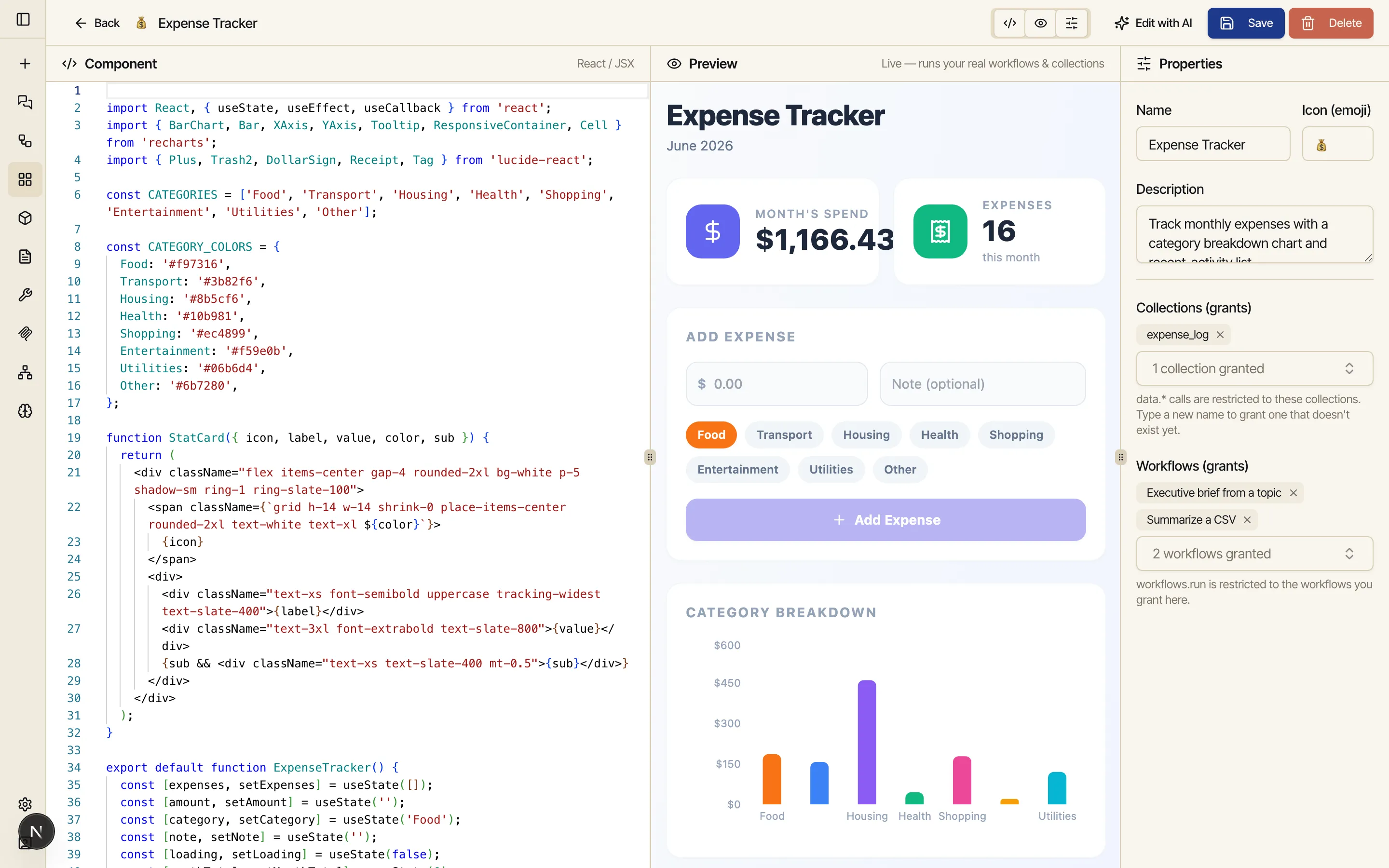
Section titled “The three panes”The editor is a three-pane workspace: Code, a live Preview, and Properties, side by side.
-
Code — the app’s source, in a full code editor. This is where you make a change directly, when describing it would be slower than just typing it.
-
Preview — the live, running app, exactly as it appears elsewhere. It runs against your real data and updates as you type — make a change in Code, pause, and the preview reloads to match. There’s nothing to refresh.
-
Properties — the app’s name, icon, and description, plus the grants: the specific collections and workflows this app is allowed to touch. See Data & permissions for what those grants do. The right dock toggles between Properties and an Assistant tab — see Edit with AI.
Show and hide panes
Section titled “Show and hide panes”A Code / Preview / Properties toggle in the header turns each pane on or off, so you can focus on what you’re doing — go full-width Preview to use the app, or Code-and-Preview to edit and watch. The panes are resizable; drag the divider between any two. You can’t hide all of them at once.
Save keeps you editing
Section titled “Save keeps you editing”Click Save and your changes are persisted — but you stay in the editor, on the same app, with the live Preview already reflecting what you saved. Save is “save and keep working,” not “save and leave.” When you’re done, click Back to return to where you came from.
Edit with AI
Section titled “Edit with AI”The right dock toggles between Properties and an Assistant tab. The Assistant tab is a chat built into the editor, already pointed at this app: describe the change in plain language — “add a weekly view,” “use a pie chart instead” — and the assistant rewrites the app in place. The Code pane and live Preview update to the new version; you never leave the editor. The header’s Edit with AI button is a shortcut to that same Assistant tab.

It’s the same conversational flow as building an app — handy when you’re in the editor and realize the change is easier to say than to type. See Edit with AI for the full behavior (it works the same in the prompt and skill editors), and Version history for the Versions button that puts every save — yours and the assistant’s — on a timeline you can diff and restore.
See and fix runtime errors
Section titled “See and fix runtime errors”Apps run real code, and sometimes that code breaks — a typo, a wrong field name, a call that fails. The Preview catches those so you don’t have to open a browser’s developer tools to find out what happened.
When the running app hits an error, a Console button in the Preview header turns red with a count. Click it to open the console drawer, which lists what went wrong — uncaught errors, failed data or workflow calls, and anything the app reports as a warning. A repeated error collapses into one line with a ×N count instead of flooding the list, and the console clears itself every time the app reloads, so what you see is always the current run.
Each entry has a Send to assistant button. It opens the Assistant tab and drops the error — the message and where it happened — straight into the composer. Read it over, add anything useful, and send: the assistant traces the error back to the line that caused it and fixes it in place, the same way Edit with AI handles any other change.
Delete an app
Section titled “Delete an app”The header’s Delete removes the app and asks you to confirm first. Deleting an app deletes only the app — the workflows it ran and the collections it read are shared assets you built, and they stay exactly where they were. Any other app, chat, or schedule that uses them keeps working.
Related
Section titled “Related”- Build a mini app — the chat flow that creates an app in the first place.
- Data & permissions — the grants you set in the Properties pane.
- Build your first workflow — the workflows an app runs.