

Chatting
Chat is where most work in Catalyst starts. You type a message, the model replies, and the conversation builds from there. But it’s far more than a chat box — you can put several models head-to-head, have the model run code and draw charts, generate images, read your files, and call tools to act on a task instead of just describing it.
Sending a message
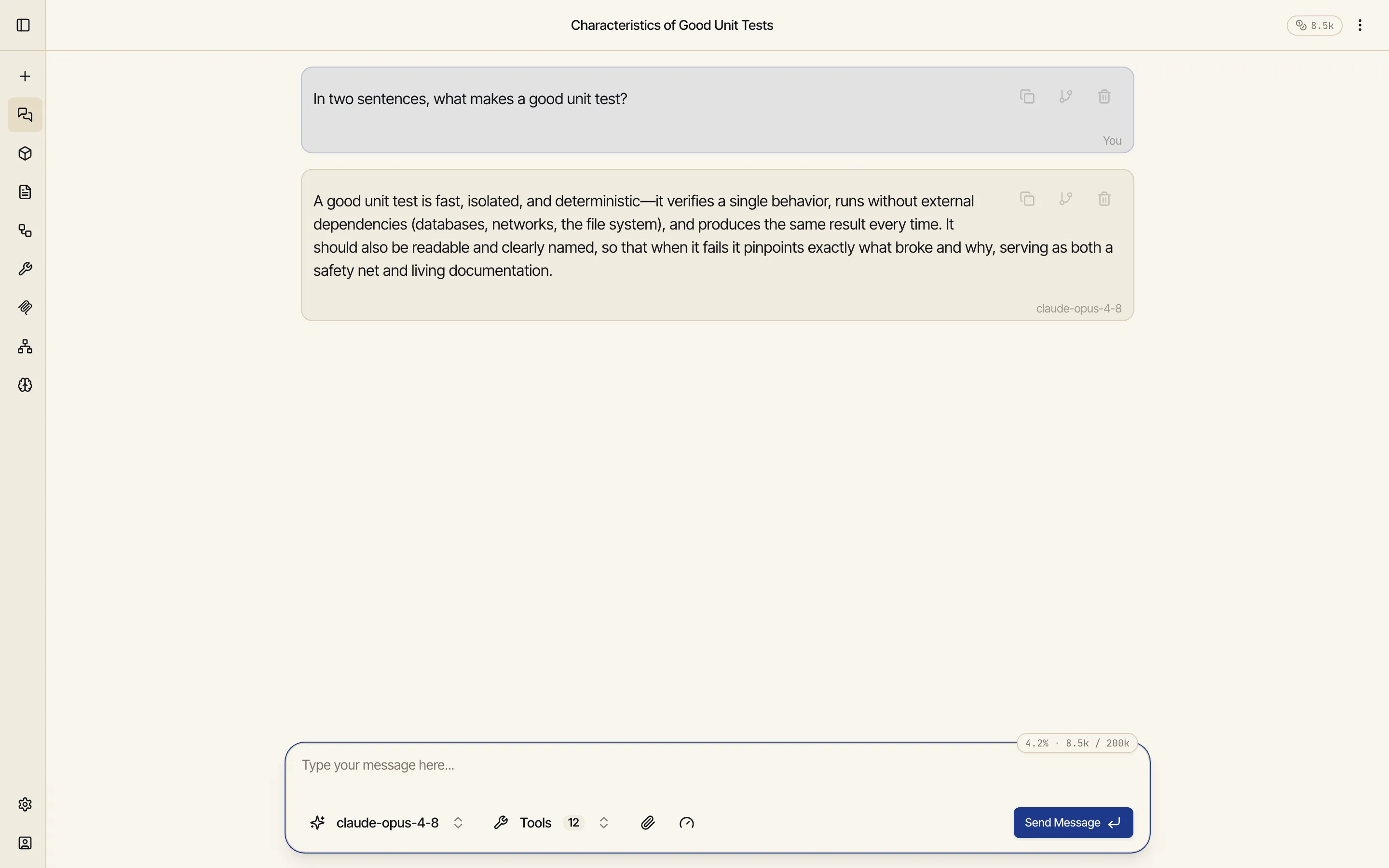
Section titled “Sending a message”Type into the composer and press Send or Enter (use Shift+Enter for a line break).
The reply streams in as it’s generated, so you can start reading immediately and stop it
early if it’s heading the wrong way. The model that produced each reply is labelled beneath
it, so you always know who answered.
Sessions and context
Section titled “Sessions and context”Every conversation is a session, saved automatically and given a title. Recent ones sit in the sidebar’s Sessions list and on the home screen under Pick up where you left off — and clicking Chats in the sidebar opens your full history, including the Assistant chats attached to your apps and workflows.
Each message carries the earlier turns of the session along with it — that shared history is the context that lets the model follow up intelligently. Two habits keep chats sharp: start a new chat for a new topic (it keeps answers relevant), and don’t worry about long ones — Catalyst compresses older parts of a long conversation so you rarely hit a model’s limit mid-thought.
Switch — or compare — models
Section titled “Switch — or compare — models”The current model sits in the composer. Open the picker to switch to another — Claude, GPT, Gemini, or any model your workspace provides or you’ve connected. The conversation continues unchanged; only the model answering the next message changes.
The more powerful move: select several models at once (you’ll see the model name with a
+2-style badge) and Catalyst asks them the same question in parallel, laying the answers
out side by side so you can compare them directly.
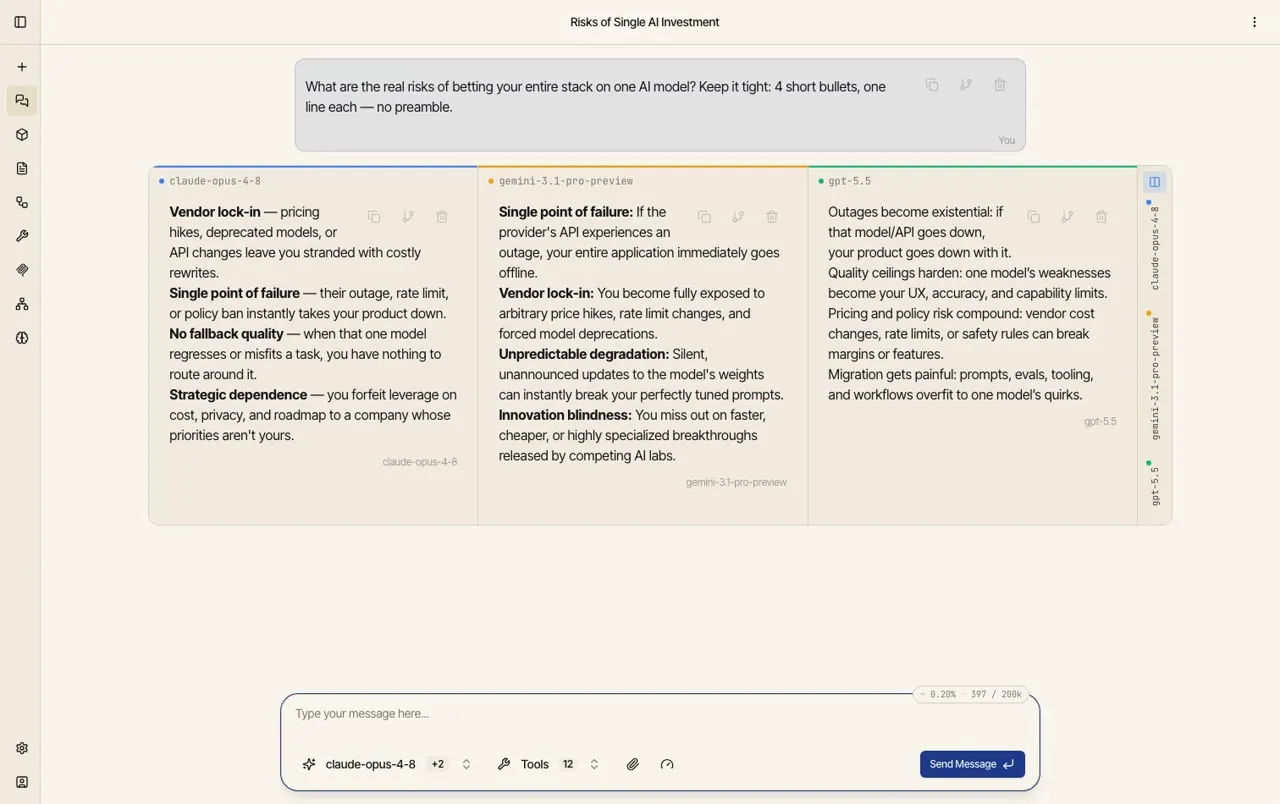
This is the whole philosophy of Catalyst made visible: nothing in your chat is tied to one provider, so putting models in competition costs you nothing but the run. Use it to sanity-check a hard answer, find which model is strongest for a kind of task, or just settle an argument.
Run code and get charts
Section titled “Run code and get charts”Turn on agentic mode and the model can run Python in a private sandbox — to calculate, transform data, or produce a figure — and the result renders right in the conversation. Ask for a chart and you get an actual chart:
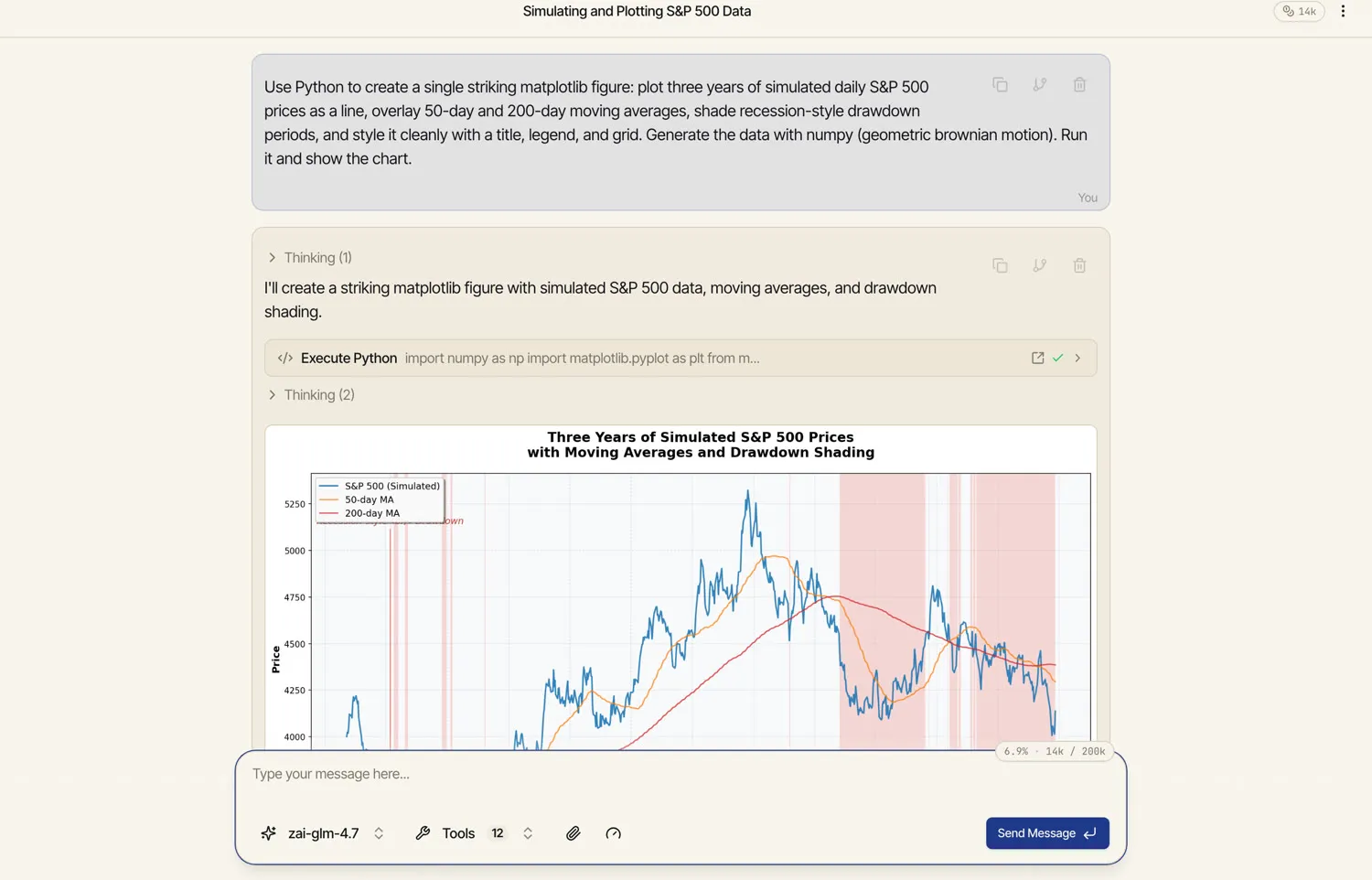
You can watch it work — the Execute Python step shows the code it ran, and Thinking steps show the reasoning in between. The sandbox is isolated to your conversation, and any files the code produces are yours to download. See Files & data in chat for working with your own data this way.
Everything else chat can do
Section titled “Everything else chat can do”Chat is the hub for the rest of Catalyst’s surfaces — most of them are one toggle or one sentence away:
Beyond those, chat also renders mathematics cleanly (formatted equations, not raw markup), searches the live web with citations, and exposes a set of tools (the Tools control in the composer) that the model draws on as needed.
Controlling how hard it thinks
Section titled “Controlling how hard it thinks”Some models can spend extra effort reasoning before they answer — working through a problem step by step. Catalyst exposes this as a reasoning effort control in the composer, from off up to high. More effort means better answers on hard problems (slightly slower and more expensive); leave it low or off for quick, everyday questions.